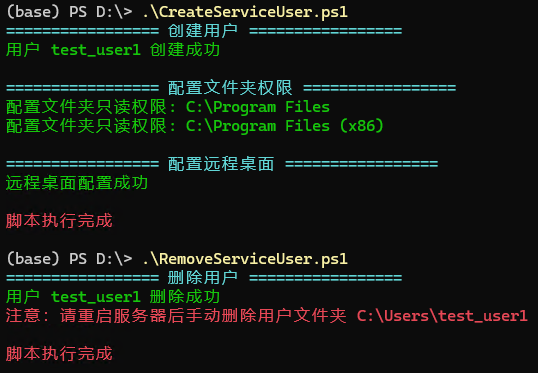
管理Windows服务器时,通常会有很多项目需要在同一台服务器上部署服务,这时最好为每个服务创建新的用户,方便资源隔离。
本文使用PowerShell脚本自动创建和删除用户,有效提升运维效率。
以下是基本脚本,几点需要注意:
网络配置(比如端口开放等)由管理员设置,用户无权限;
用户需要在自己的用户文件夹下部署服务,不可部署在其它位置,否则无法做到隔离控制。
可使用Windows自带的远程桌面进行登录。
1 2 3 4 5 6 7 8 9 10 11 12 13 14 15 16 17 18 19 20 21 22 23 24 25 26 27 28 29 30 31 32 33 34 35 36 37 38 39 40 41 42 43 44 45 46 47 48 49 50 51 52 53 54 55 56 57 58 59 60 61 62 63 64 65 66 67 68 69 70 71 72 73 74 75 76 77 78 79 80 81 82 83 84 85 86 87 88 89 90 91 92 93 94 95 96 97 98 99 100 101 102 103 104 105 106 107 108 109 110 111 112 113 114 115 116 117 118 119 120 121 122 123 124 125 126 127 128 129 130 if (-not ([Security.Principal.WindowsPrincipal ][Security.Principal.WindowsIdentity ]::GetCurrent()).IsInRole([Security.Principal.WindowsBuiltInRole ]::Administrator)) { Write-Host "请以管理员身份运行此脚本" -ForegroundColor Red exit 1 } $config = @ { UserName = "test_user1" UserPassword = "Lh@2026" IsAdmin = $false } $SystemSoftwareDirs = @ ("C:\Program Files" , "C:\Program Files (x86)" )try { Write-Host "================= 创建用户 =================" -ForegroundColor Cyan $existingUser = Get-LocalUser -Name $config .UserName -ErrorAction SilentlyContinue if (-not $existingUser ) { $securePassword = ConvertTo-SecureString $config .UserPassword -AsPlainText -Force $userParams = @ { Name = $config .UserName Password = $securePassword } New-LocalUser @userParams | Out-Null Write-Host "用户 $ ($config .UserName) 创建成功" -ForegroundColor Green } else { Write-Host "用户 $ ($config .UserName) 已存在,跳过创建" -ForegroundColor Green Set-LocalUser -Name $config .UserName -PasswordNeverExpires $true -ErrorAction SilentlyContinue Set-LocalUser -Name $config .UserName -UserMayNotChangePassword $true -ErrorAction SilentlyContinue } } catch { Write-Host "创建或配置用户错误: $ ($_ .Exception.Message)" -ForegroundColor Red exit 1 } try { if ($config .IsAdmin -eq $true ) { Write-Host "`n================= 配置管理员权限 =================" -ForegroundColor Cyan $adminGroup = "Administrators" $isAdminMember = Get-LocalGroupMember -Group $adminGroup -ErrorAction SilentlyContinue | Where-Object { $_ .Name -match "^$ ($config .UserName)$ |\\$ ($config .UserName)$ " } if (-not $isAdminMember ) { Add-LocalGroupMember -Group $adminGroup -Member $config .UserName Write-Host "已将 $ ($config .UserName) 设置为管理员权限" -ForegroundColor Green } } } catch { Write-Host "配置管理员权限错误: $ ($_ .Exception.Message)" -ForegroundColor Red } try { Write-Host "`n================= 配置文件夹权限 =================" -ForegroundColor Cyan foreach ($dir in $SystemSoftwareDirs ) { if (Test-Path $dir ) { $acl = Get-Acl -Path $dir $currentRules = $acl .Access | Where-Object { $_ .IdentityReference -like "*$ ($config .UserName)*" } if (-not $currentRules ) { $readRule = New-Object System.Security.AccessControl.FileSystemAccessRule( $config .UserName, "ReadAndExecute" , "ContainerInherit,ObjectInherit" , "None" , "Allow" ) $acl .AddAccessRule($readRule ) Set-Acl -Path $dir -AclObject $acl Write-Host ("配置文件夹只读权限: " + $dir ) -ForegroundColor Green } } } } catch { Write-Host "配置文件夹权限错误: $ ($_ .Exception.Message)" -ForegroundColor Red } try { Write-Host "`n================= 配置远程桌面 =================" -ForegroundColor Cyan $rdpGroup = Get-LocalGroup -SID S-1-5-32-555 -ErrorAction Stop $rdpGroupName = $rdpGroup .Name $members = Get-LocalGroupMember -Group $rdpGroupName -ErrorAction SilentlyContinue if ($members .Name -notcontains $config .UserName -and $members .Name -notcontains "$env:COMPUTERNAME \$ ($config .UserName)" ) { Add-LocalGroupMember -Group $rdpGroupName -Member $config .UserName } $regPath = "HKLM:\SYSTEM\CurrentControlSet\Control\Terminal Server" $regName = "fDenyTSConnections" $currentValue = Get-ItemProperty -Path $regPath -Name $regName -ErrorAction SilentlyContinue if ($currentValue .$regName -ne 0 ) { Set-ItemProperty -Path $regPath -Name $regName -Value 0 } Enable-NetFirewallRule -DisplayGroup "Remote Desktop" -ErrorAction SilentlyContinue Write-Host "远程桌面配置成功" -ForegroundColor Green } catch { Write-Host "远程桌面配置错误: $ ($_ .Exception.Message)" -ForegroundColor Red } Write-Host "`n脚本执行完成`n" -ForegroundColor Red
以下是基本脚本,几点需要注意:
删除用户账号之前,需要用户手动关闭服务。
用户文件夹需要重启后手动删除,无法自动清理。
1 2 3 4 5 6 7 8 9 10 11 12 13 14 15 16 17 18 19 20 21 22 23 24 25 26 27 28 29 30 31 32 33 34 35 36 37 38 39 40 41 42 43 44 45 46 47 48 49 50 51 52 53 54 55 if (-not ([Security.Principal.WindowsPrincipal ][Security.Principal.WindowsIdentity ]::GetCurrent()).IsInRole([Security.Principal.WindowsBuiltInRole ]::Administrator)) { Write-Host "请以管理员身份运行此脚本" -ForegroundColor Red exit 1 } $config = @ { UserName = "test_user1" } $userProfilePath = "C:\Users\$ ($config .UserName)" Write-Host "================= 删除用户 =================" -ForegroundColor Cyan$existingUser = Get-LocalUser -Name $config .UserName -ErrorAction SilentlyContinueif ($existingUser ) { try { Remove-LocalUser -Name $config .UserName -ErrorAction Stop Write-Host "用户 $ ($config .UserName) 删除成功" -ForegroundColor Green } catch { Write-Host "删除用户失败: $ ($_ .Exception.Message)" -ForegroundColor Red exit 1 } } else { Write-Host "用户 $ ($config .UserName) 不存在,跳过删除" -ForegroundColor Green } Write-Host "注意:请重启服务器后手动删除用户文件夹 $userProfilePath " -ForegroundColor RedWrite-Host "`n脚本执行完成`n" -ForegroundColor Red